BoardSync keeps monday.com and BigQuery in sync automatically. Send monday.com board data to BigQuery for reporting, dashboards, and deeper analysis — without manual CSV exports. You can also sync BigQuery data back into monday.com, so your teams always work with up-to-date information. Choose a sync direction, set a schedule, and let BoardSync handle the rest.
Make sure you have access to the accounts you want to connect.
A monday.com admin to install BoardSync on the relevant monday.com account.
A Google account with access to the BigQuery project, datasets, and tables you want to use, one with billing enabled. Learn how to enable billing here
BigQuery permissions that allow BoardSync to read metadata and write the destination table when syncing monday.com data into BigQuery.
Install BoardSync
Open the install link and choose the install scope
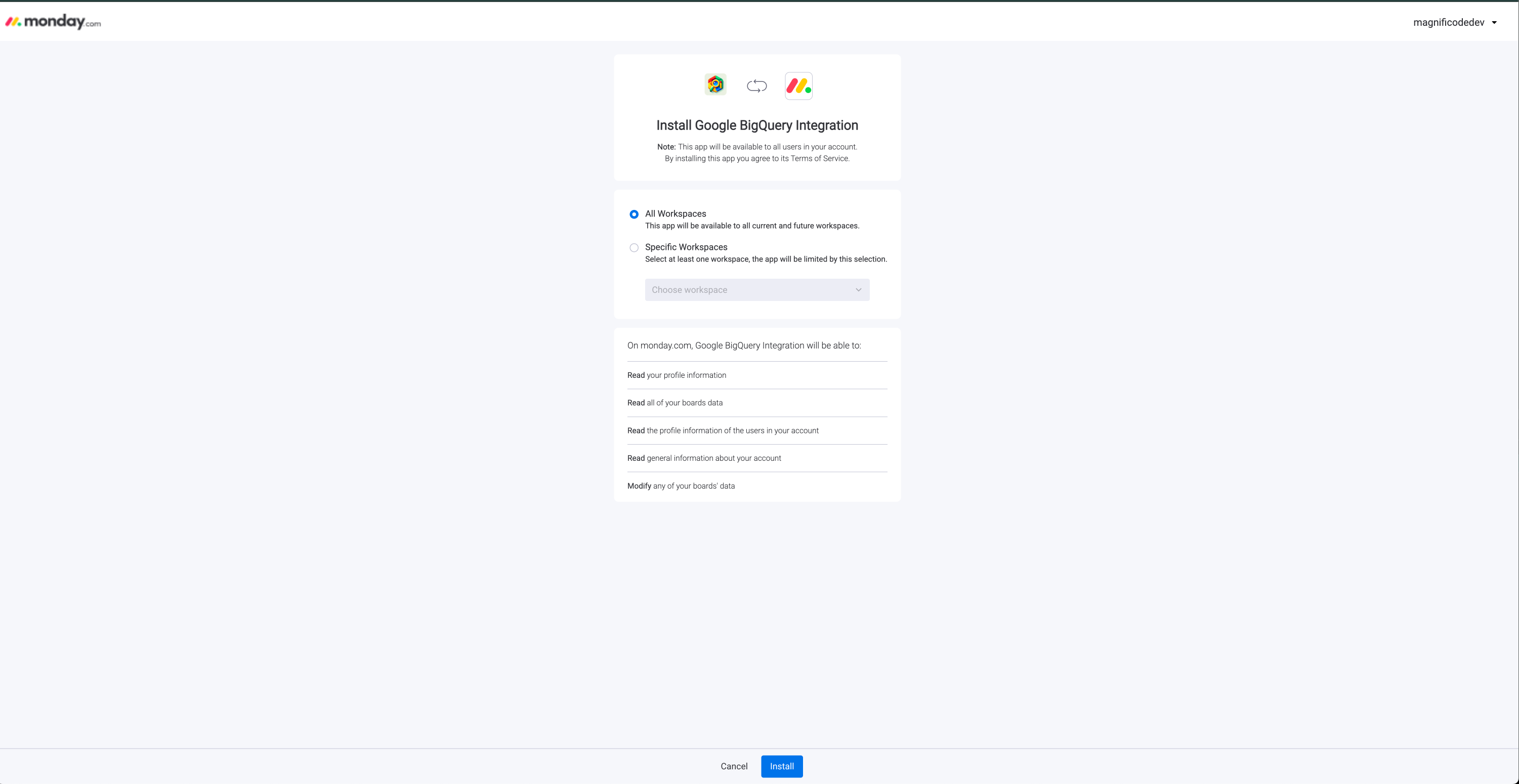
Start with the BoardSync install link. Choose whether BoardSync should be available to all workspaces or only specific workspaces, then click Install.
Choose the monday.com workspace scope and install the app.
Go to the Settings tab on the app marketplace page
After installation, monday.com opens the installed app page in the marketplace. Click the Settings tab on this page.
BoardSync Bigquery Integration settings page in monday.com.
Choose sync direction
In the open screen choose if you want to automatically transfer data from monday.com to Google BigQuery or vice-versa: from Google BigQuery to monday.com.
Important: currently we only support one direction per account. If you need more please contact support.
Open the installed app page and switch to Settings.
Authorize monday.com
After you choose a sync direction, BoardSync asks monday.com for access to the account and boards that the integration needs to read or update.
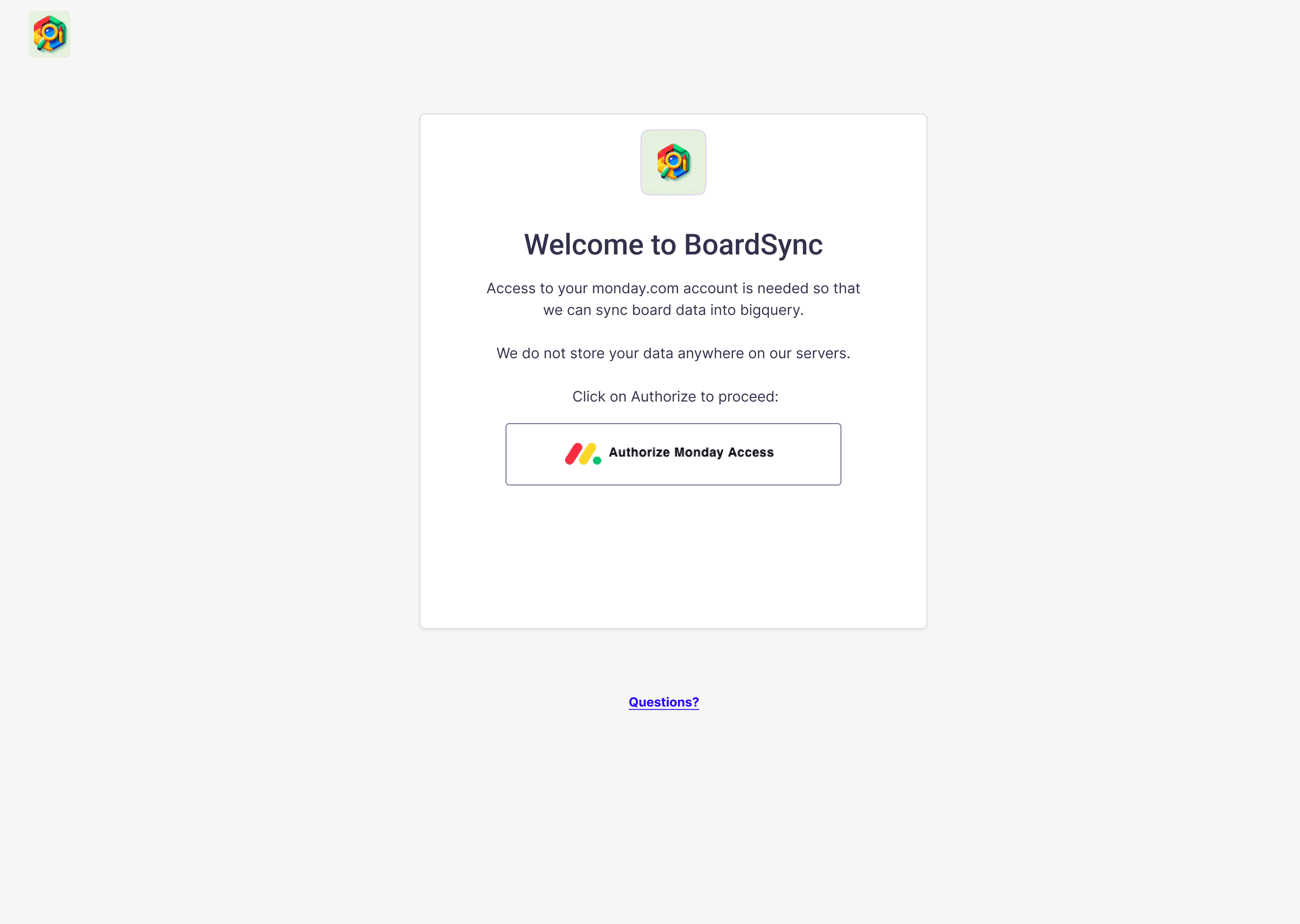
Click "Authorize Monday Access"
Authorize BoardSync so it can access the monday.com account used for this integration.
Approve permissions on monday.com page
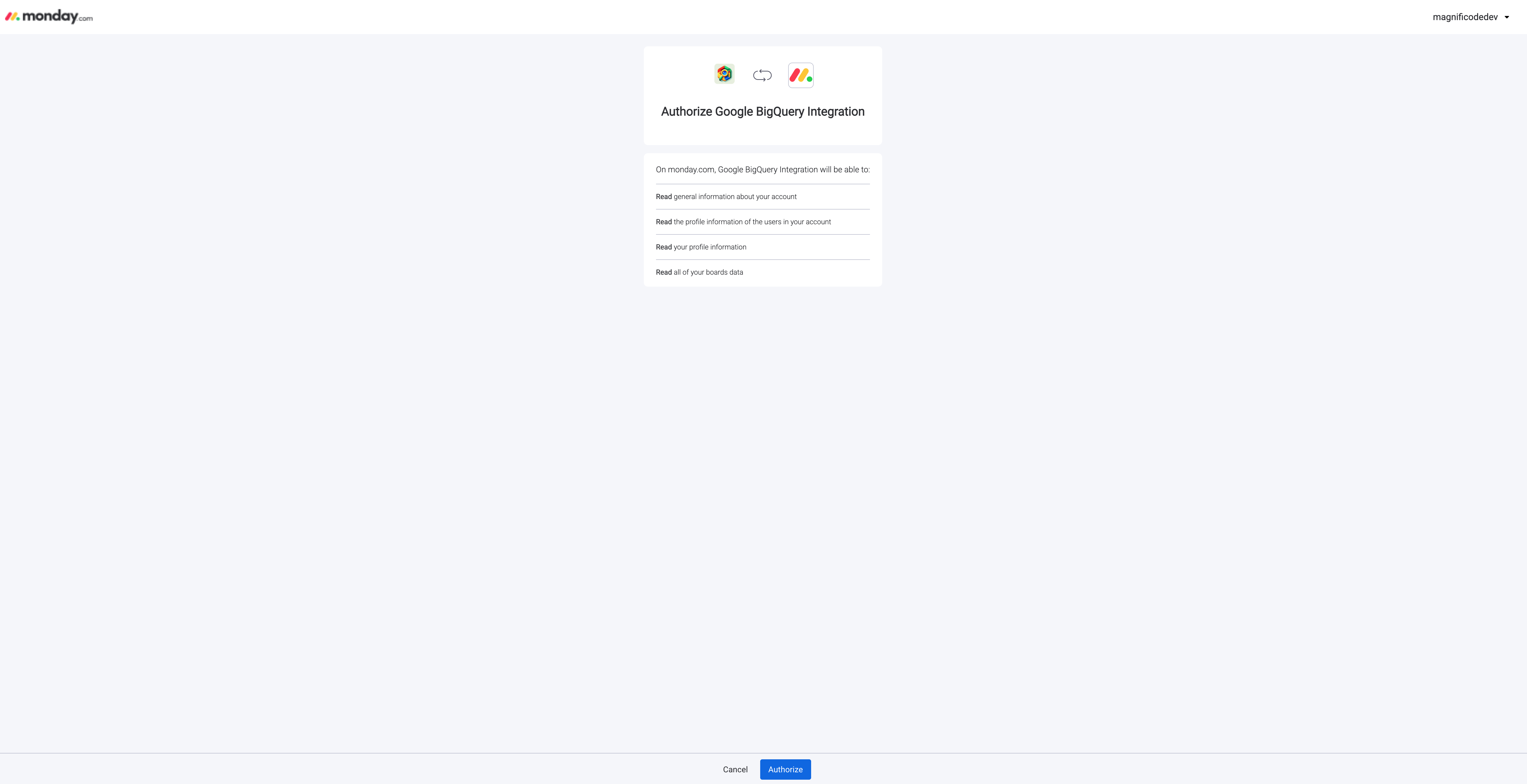
This process will enable BoardSync to sync data to or from monday.com and BigQuery. it asks for permissions depending on your chosen sync direction.
Note: if you have multiple monday.com accounts, make sure the correct one is selected at the top right of the page.
Once ready, click Authorize.
Authorize BoardSync so it can access the monday.com account used for this integration.
Connect BigQuery
After monday.com authorization is complete, BoardSync asks you to connect Google BigQuery if the selected monday.com account does not already have a BigQuery connection.
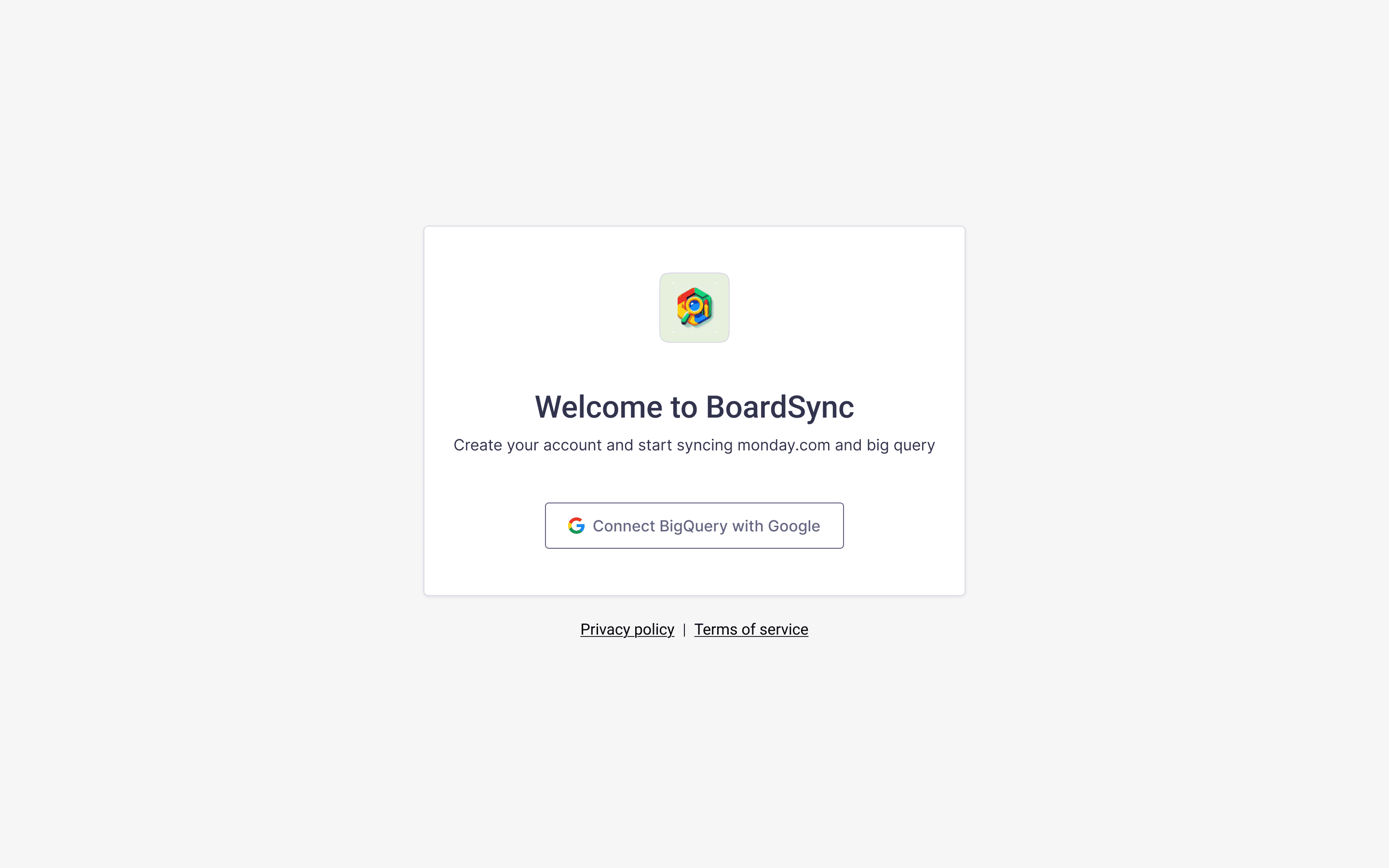
Click "Connect BigQuery Account"
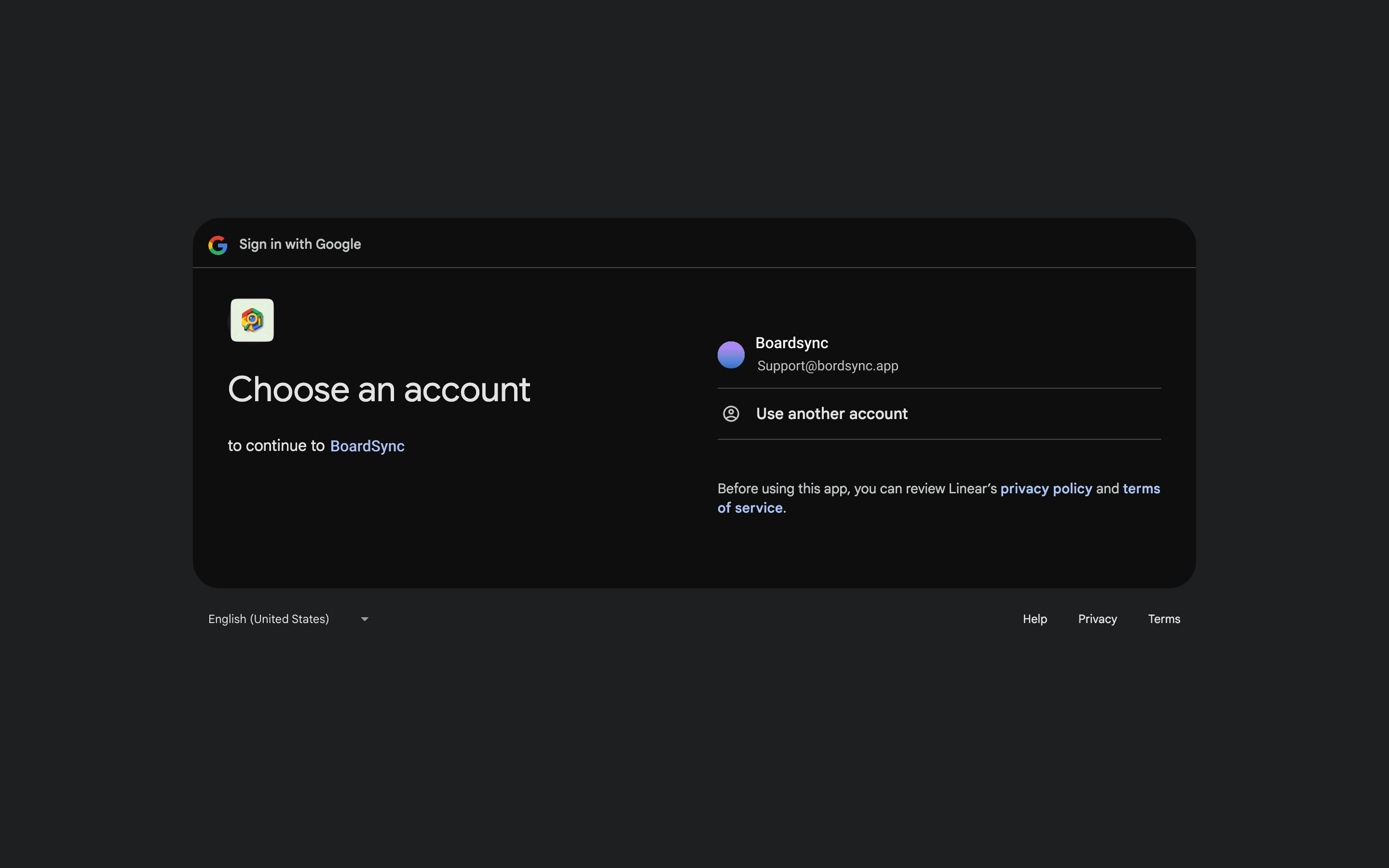
BoardSync opens Google authorization screen. Use a Google account that has access to the BigQuery project you want to sync with.
Sign in with the Google account that can access your BigQuery project.
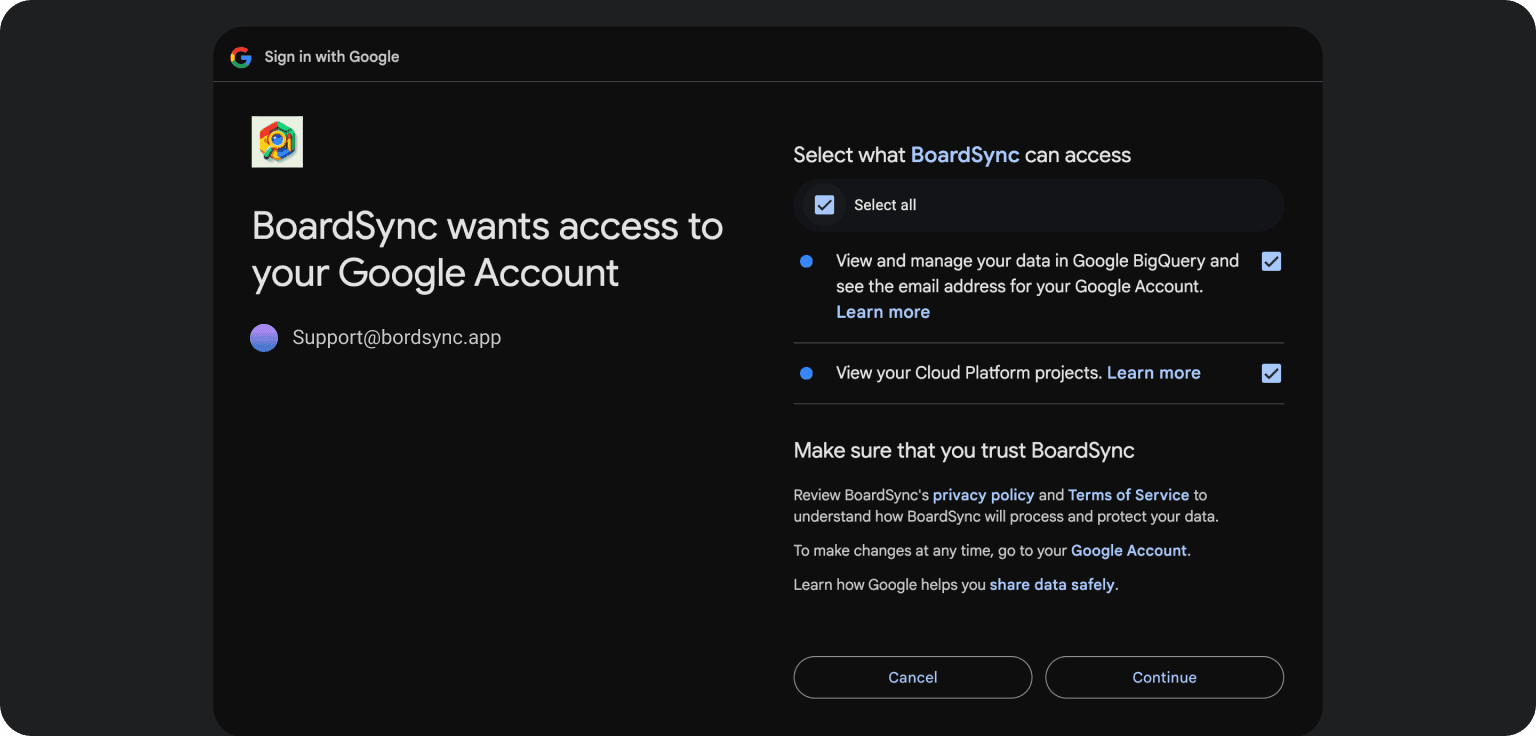
Approve Google permissions
BoardSync requests BigQuery access and Google Cloud project read access. The project permission lets the app show your available cloud projects during setup.
Choose the Google account that owns or can access the BigQuery resources.Approve BigQuery and Google Cloud project access for BoardSync.
Congrats! you've now connected both monday.com and BigQuery
At this point, the guide diverges into 2 different paths depending on your chosen sync direction. For BigQuery to monday.com - click here. For monday.com to BigQuery, keep reading.
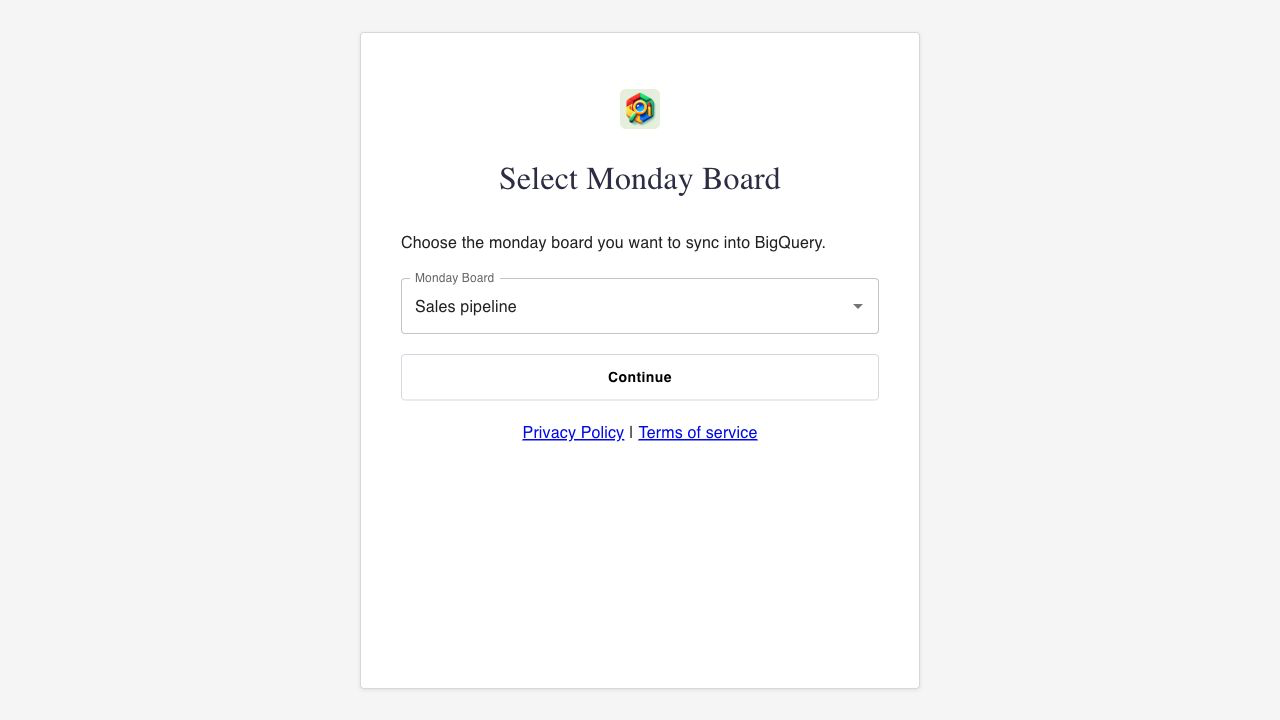
Pick the monday.com board that should become the BigQuery source.
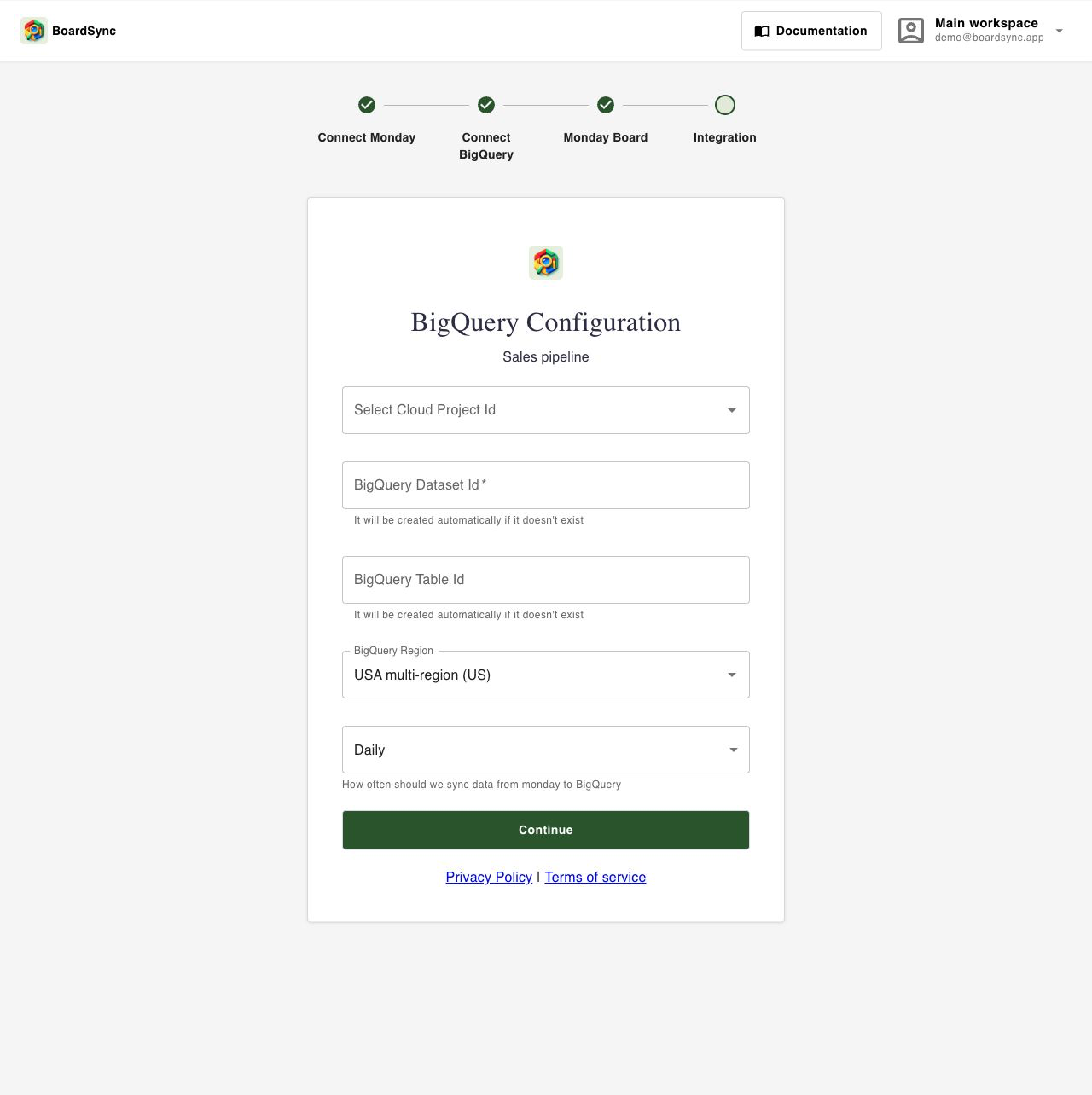
Configure the destination table
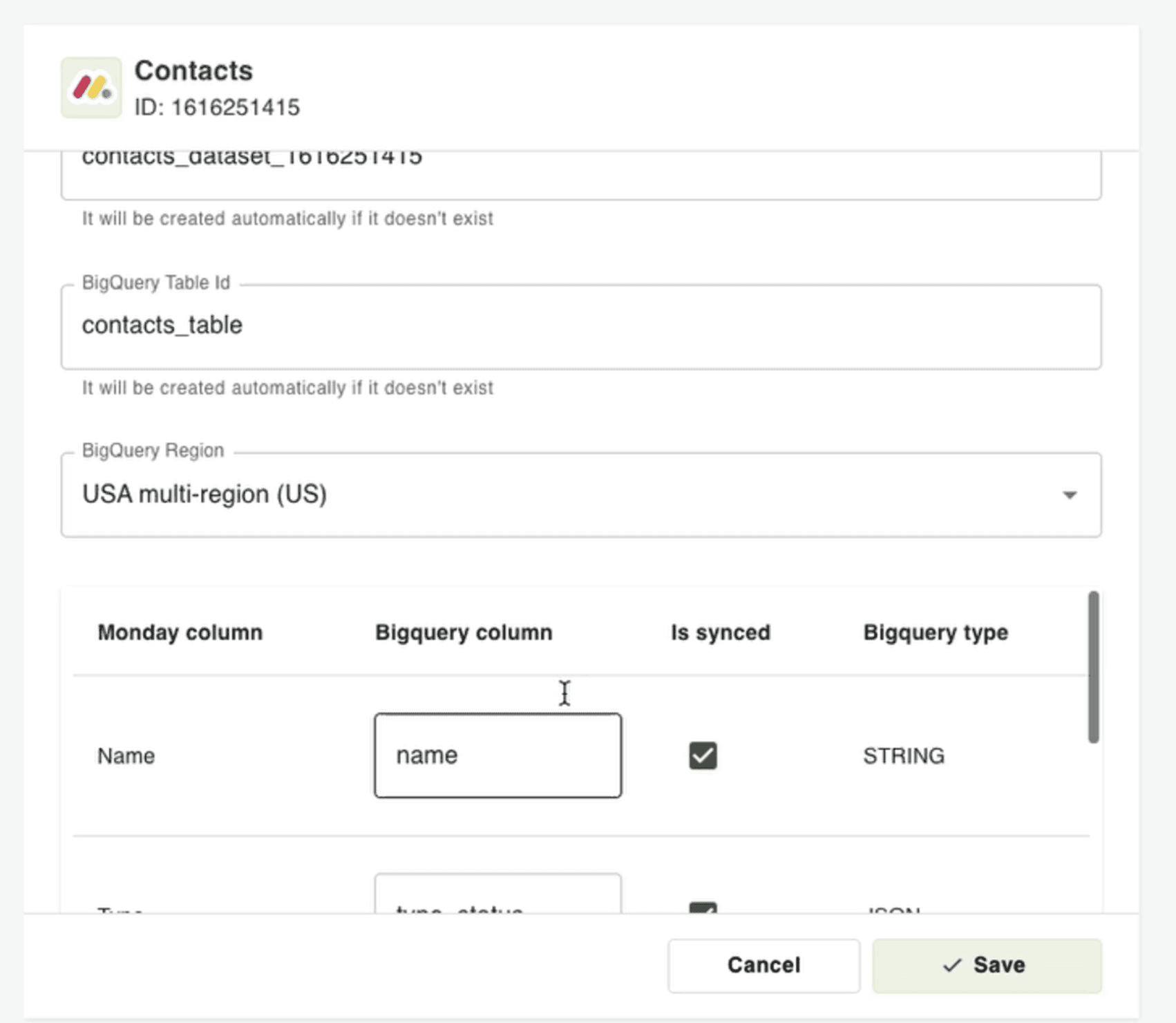
Select or enter the Google Cloud project, BigQuery dataset ID, BigQuery table ID, and region. Dataset and table names must use letters, numbers, and underscores. If the dataset or table does not exist, BoardSync creates it during setup.
Configure the destination project, dataset, table, region, and frequency in BoardSync.
Choose the sync frequency
On the same screen Select how often BoardSync should sync the board into BigQuery, then click Continue. BoardSync creates the integration and returns you to the BoardSync Settings tab.
Perform the initial sync
Now you're ready to start syncing. By now the app will redirect you to view your integrations where you should see the integration you just created. App will schedule syncs every day/week/month depending on your frequency, but in the meantime click on "Sync now" button to initate your first sync. Once done, allow 5-10 minutes to the syncing to occur and refresh the page to know if it finished.
Before initial syncHow do you know the app synced correctly? Look for the "last synced at" date after you refresh. if the date is there - it synced, otherwise allow a few more minutes then refresh.After initial sync
Sync BigQuery To monday.com
Choose the source table
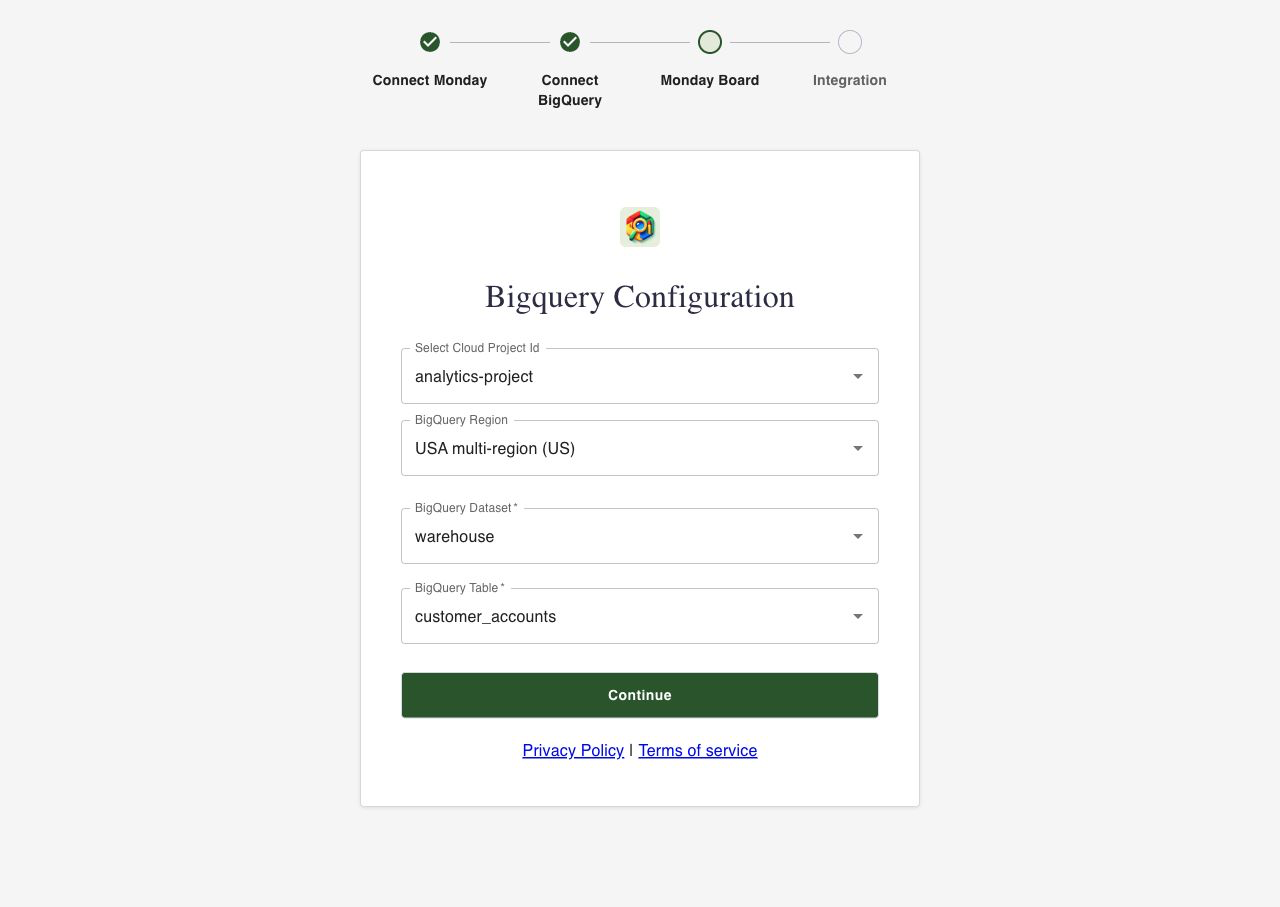
Select the Google Cloud project, BigQuery region, dataset, and table you want to sync from. BoardSync validates the table and saves it as the source for the integration.
Choose the source project, region, dataset, and table in BoardSync.
Configure the monday.com board
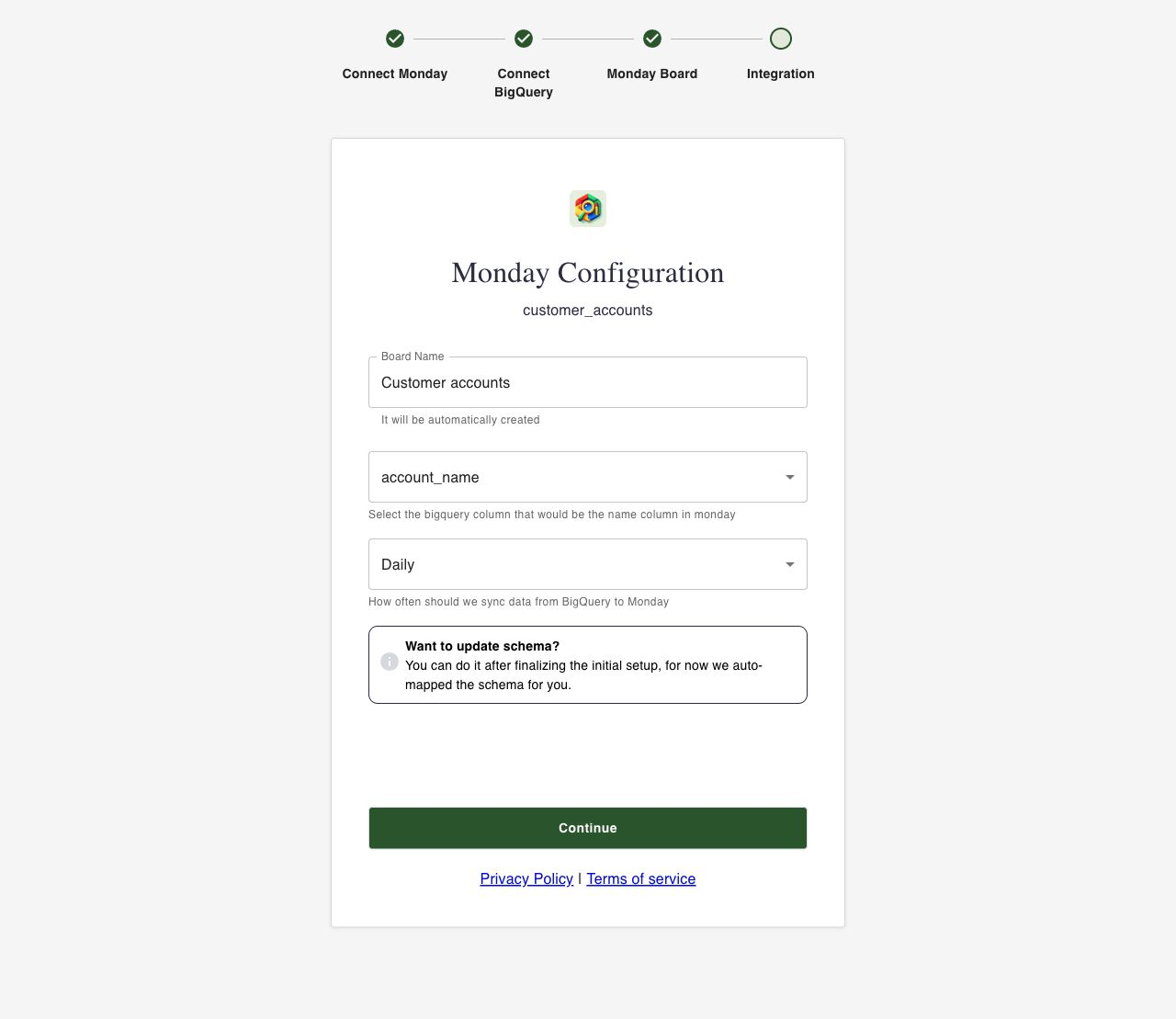
Enter the monday.com board name that BoardSync should create. Choose which BigQuery column should become the monday.com item name column.
Configure the new monday.com board, item name column, and sync frequency.
Choose the sync frequency
Select how often BoardSync should sync BigQuery data into monday.com, then click Continue.
Perform the initial sync
Now you're ready to start syncing. By now the app will redirect you to view your integrations where you should see the integration you just created. App will schedule syncs every day/week/month depending on your frequency, but in the meantime click on "Sync now" button to initate your first sync. Once done, allow 5-10 minutes to the syncing to occur and refresh the page to know if it finished.
Before initial syncHow do you know the app synced correctly? Look for the "last synced at" date after you refresh. if the date is there - it synced, otherwise allow a few more minutes then refresh.After initial sync
Manage Integrations And Connections
After setup, return to the installed BoardSync app's Settings tab in monday.com. Use it to review synced resources, open destination settings, and manage existing syncs.
Reconnect monday.com or BigQuery from the same settings area if credentials expire or access changes. Reconnecting keeps you in the current account context and returns you to settings when complete.
Use settings to review and reconnect platform connections after setup.
Troubleshooting
If you do not see the BoardSync setup screen, confirm the app is installed on the monday.com account you are currently using and open the app's Settings tab again.
If Google authorization fails, retry from Connect BigQuery Account and confirm you are using a Google account with BigQuery access.
If no Google Cloud projects appear, verify that the Google account can view the project in Google Cloud and that BigQuery is enabled.
If you reach an integration limit or subscription message, update your monday.com marketplace plan or contact support.
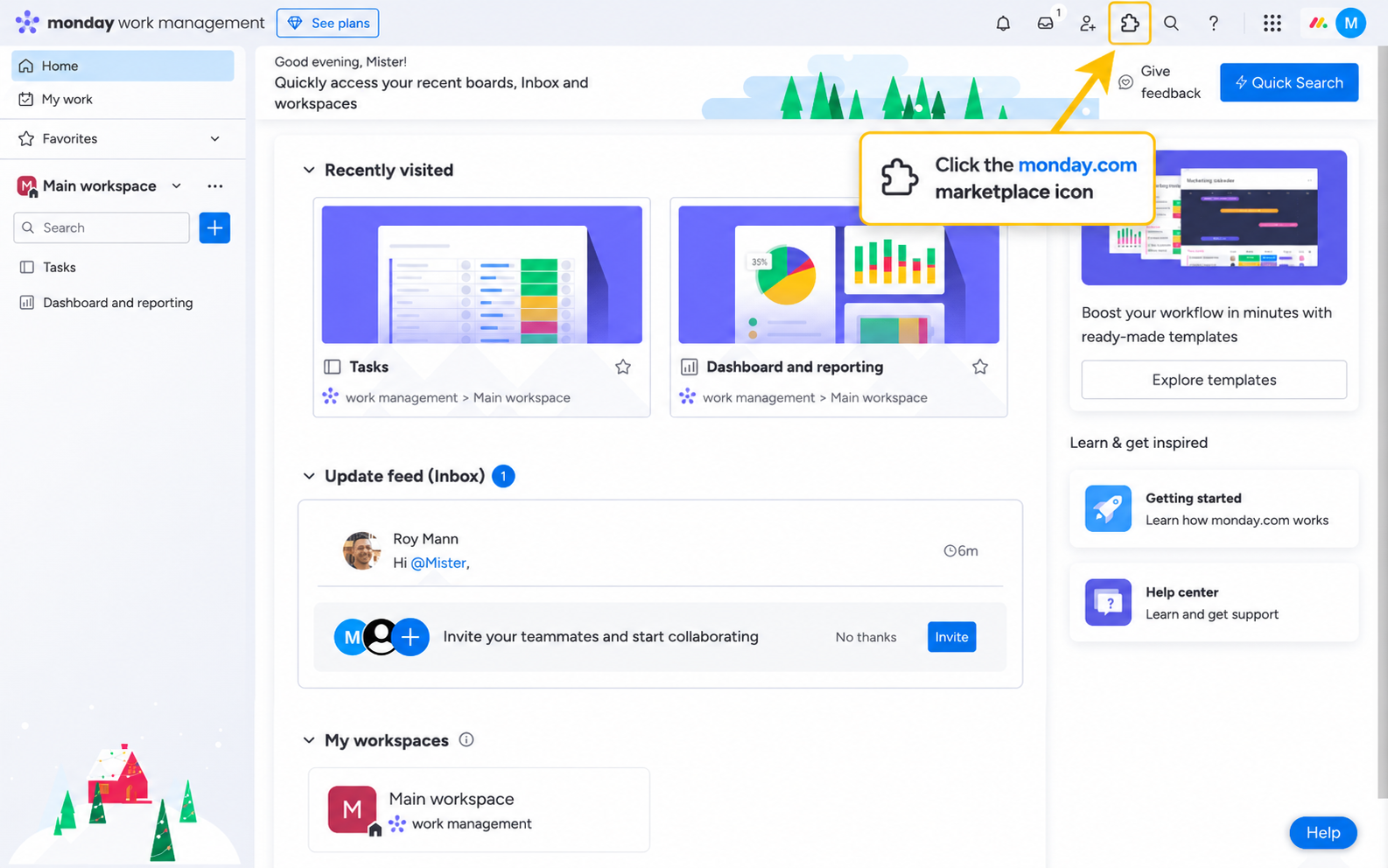
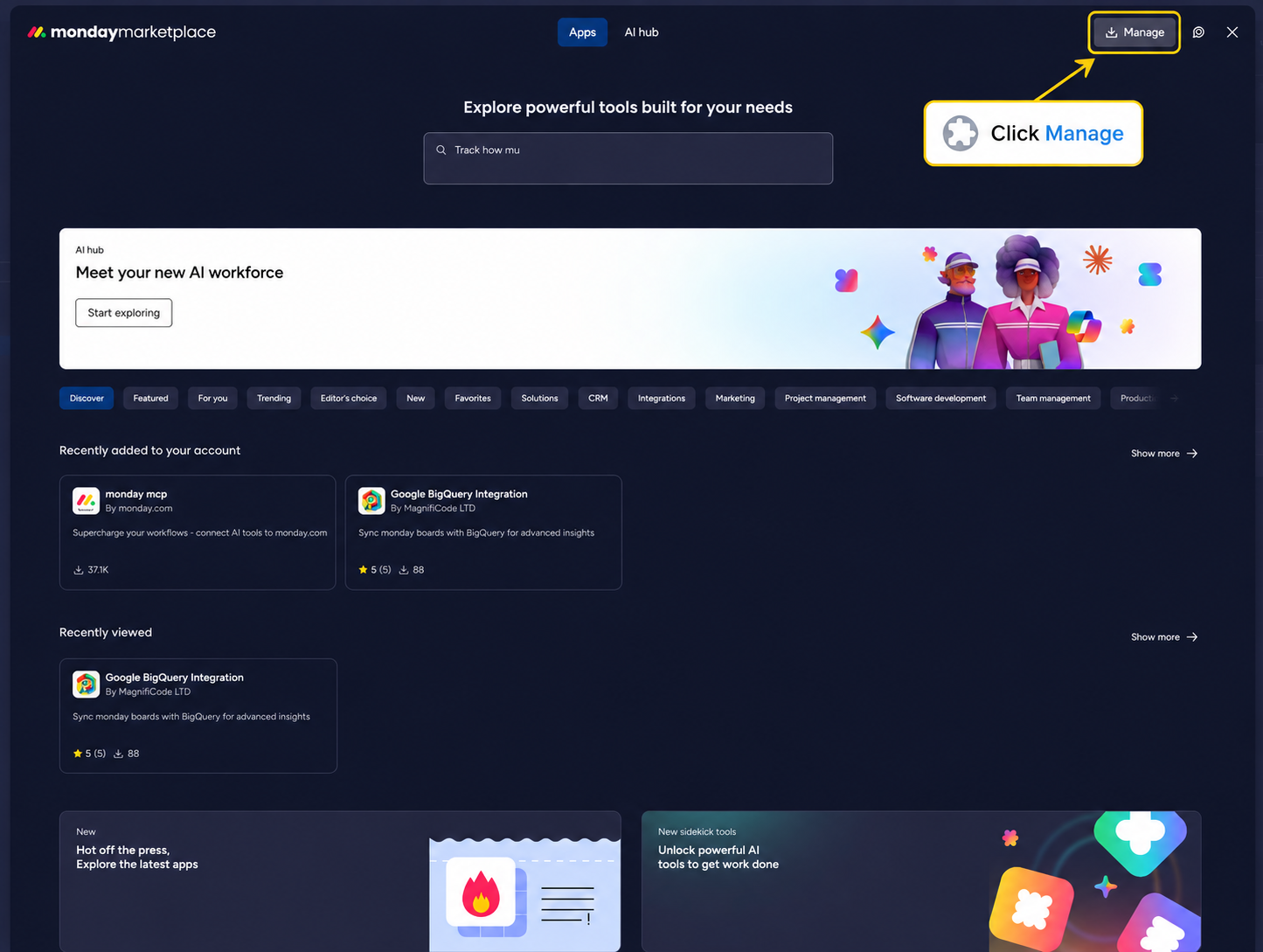
From monday.com, click the marketplace icon in the top navigation.
Open the monday.com marketplace from the top navigation.
Click Manage
In the marketplace, click Manage to view the apps installed on your monday.com account.
Open marketplace Manage to find installed apps.
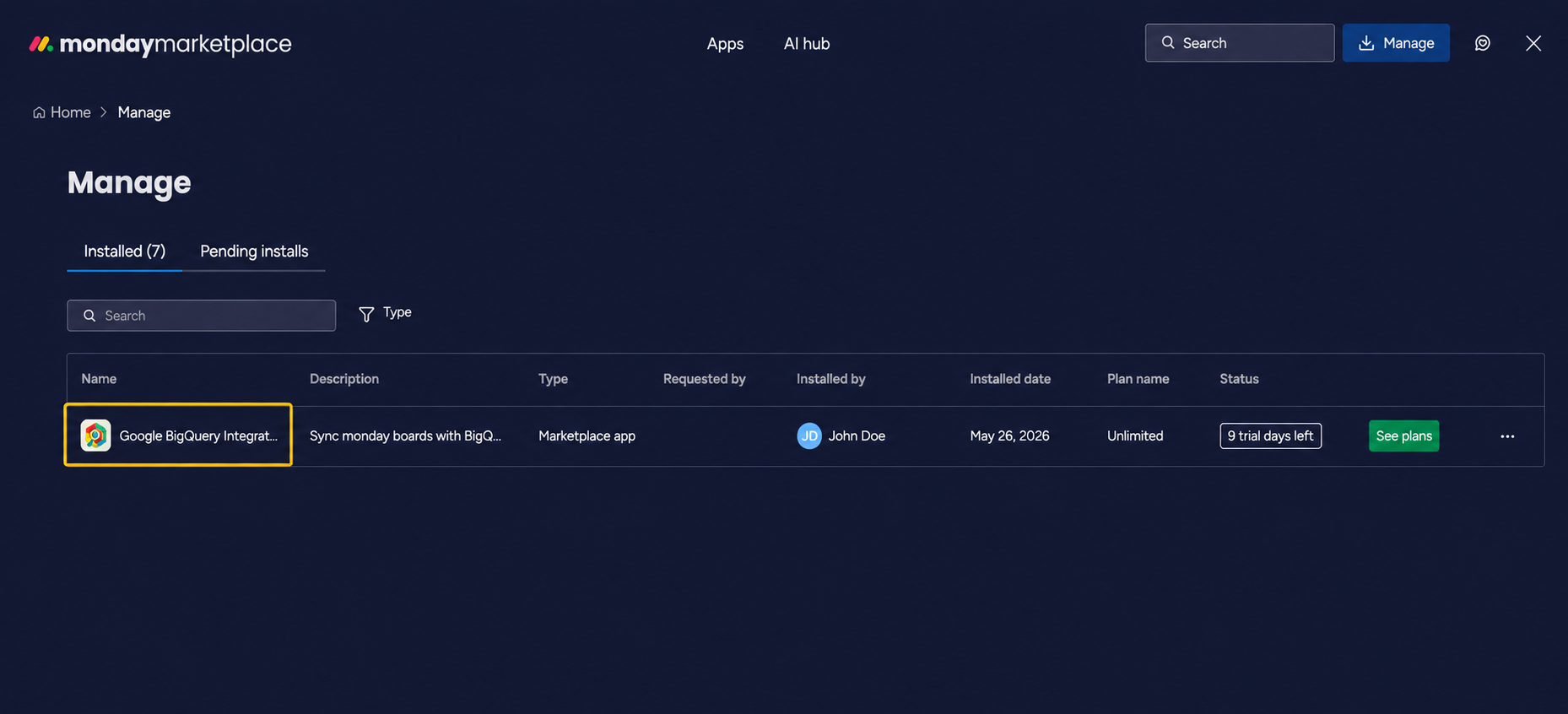
Choose Google Bigquery Integration
In the marketplace, click Manage to view the apps installed on your monday.com account.
Choose BigQuery integration
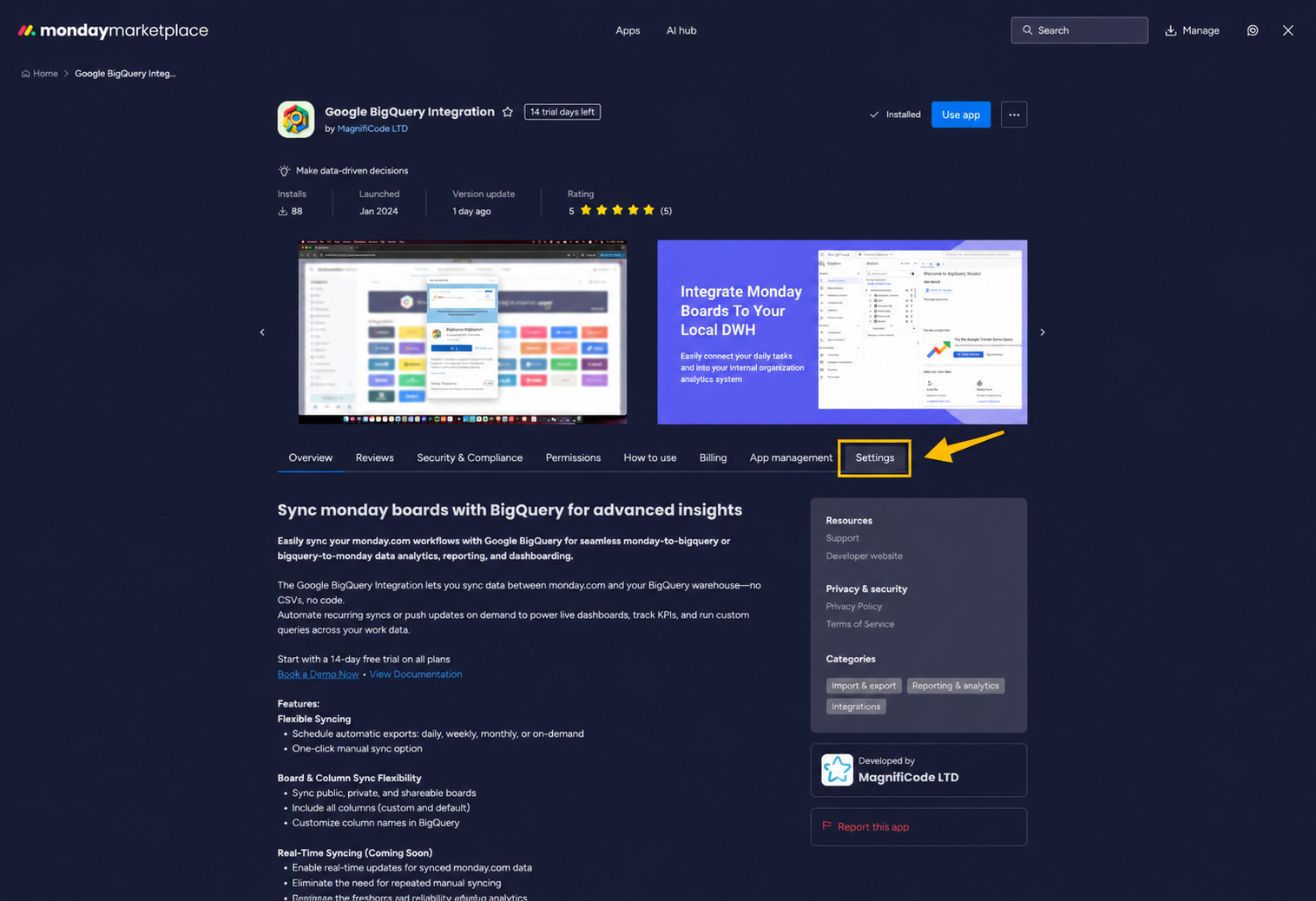
Go to settings tab
In the marketplace, click Settings to start onboarding.
Open settings to start onboarding.
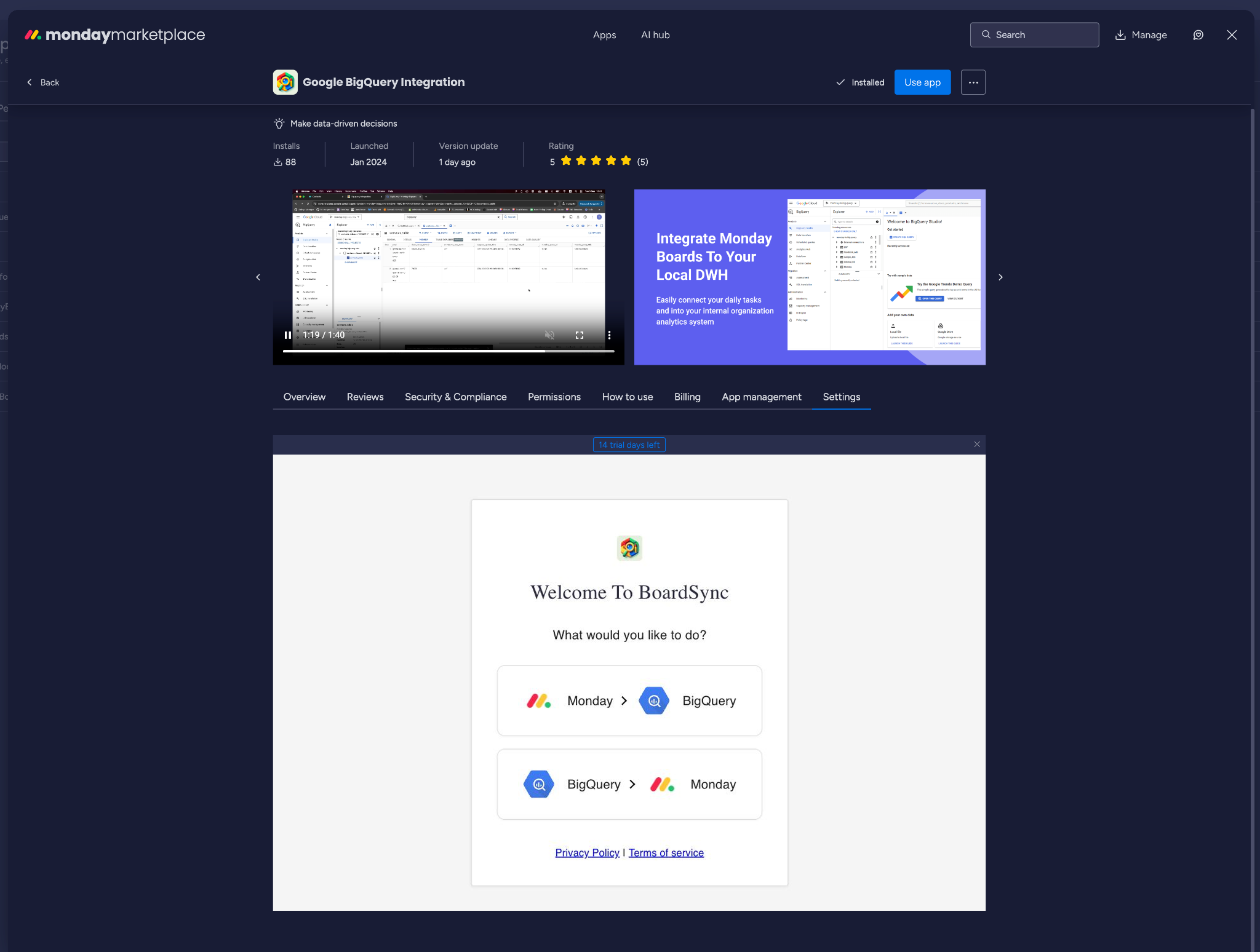
Inside settings tab
After clicking the settings tab you should see the following
BoardSync monday.com BigQuery Integration onboardingFrom there on - go back toChoose sync direction and continue the guide.
Is it safe to authorize the app?
Yes. BoardSync requests the permissions needed to transfer data between your monday.com account and BigQuery. We do not store your private board data on our servers; BoardSync sends it to your BigQuery account on your behalf.
What if I don't have a BigQuery account?
Set up BigQuery in Google Cloud before continuing. You need a Google Cloud project with BigQuery enabled, billing configured, and access to the datasets and tables you want BoardSync to use.
What if I don't have a dataset?
You can enter a new dataset ID during setup. If the dataset does not exist yet, BoardSync creates it in the selected BigQuery project and region when the integration is created.
I'm having issues finding a valid bigquery dataset or table name. What should I do?
Choose unique dataset and table names that follow BigQuery naming rules. Use letters, numbers, and underscores. Avoid choosing an existing table that contains important data, because BoardSync may manage and overwrite the destination table for the sync.
If BoardSync shows Your Google authentication has expired after you already reconnected your Google account, the issue may be caused by your Google Workspace security policy.
To resolve this, ask a Google Workspace admin to add BoardSync to the exempt apps list for Google Workspace data access. Google explains how to manage this setting in the Google Workspace Admin Help guide.
After BoardSync is exempted, reconnect BigQuery from the BoardSync Settings tab and run Sync now again.